.png?width=161&height=26&name=SiteConnect%20Logos%20(LinkedIn%20Post).png)
Turn on the sign-out zone on a site's Settings tab to add a buffer around the geofence boundary.
At a glance
|
For |
Company administrators & site managers |
| Platform | Web Portal |
| Applies to | All regions |
| Time to Read | About 2 minutes |
| You'll understand |
• Turn on the sign-out zone for a site. |
Before you begin
The site must already have a geofence drawn. See how to enable geofencing for a site if it doesn't have one yet.
Step-by-step guide
1. Open the site, then select the Settings tab.
2. Under Sign-Out Zone, select Enable sign-out zone for this site.
3. Choose a Sign-Out Zone Radius Buffer. The options are 0, 25, 50, 75 and 100 metres.
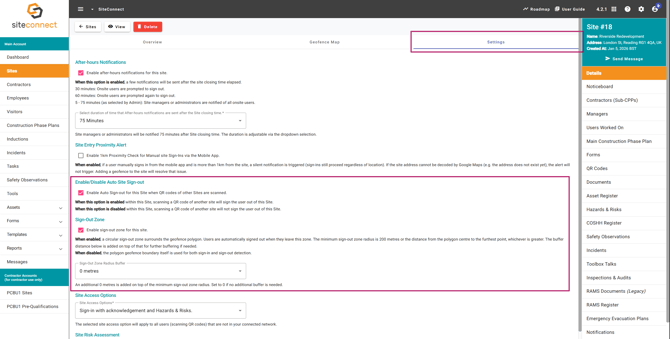
4. Select Save.
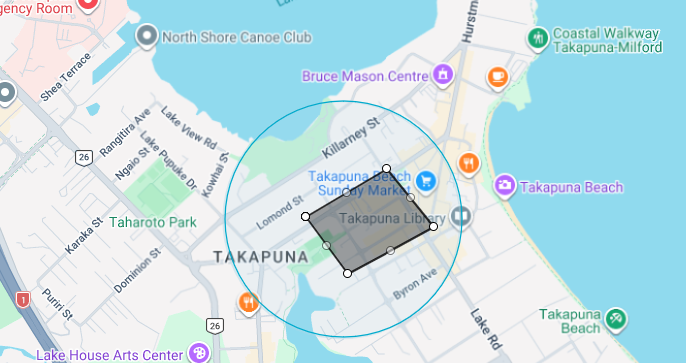
Note - the minimum sign-out zone radius is 200 metres, or the distance from the geofence's centre to its furthest point, whichever is greater. The buffer you choose is added on top of that minimum, not instead of it.
Result
You'll know the sign-out zone is active when you select View on the site and see a light blue circle around the geofence polygon. With the sign-out zone off, the polygon itself handles both sign-in and sign-out.