.png?width=161&height=26&name=SiteConnect%20Logos%20(LinkedIn%20Post).png)
Select a site when creating the asset, or edit an existing asset to add, change or remove its site link.
At a glance
|
For |
Company administrators and Asset Register owners |
| Platform | Web Portal |
| Applies to | All regions |
| Time to Read | About 2 minutes |
| You’ll learn how to |
• Link an asset to a site. |
Before you begin
Make sure the site already exists, and you have permission to manage Assets.
Assets cannot be linked to a site during a CSV import. Complete the import first, then edit each asset to add its site.
Link or change the site
Step 1. Open the asset
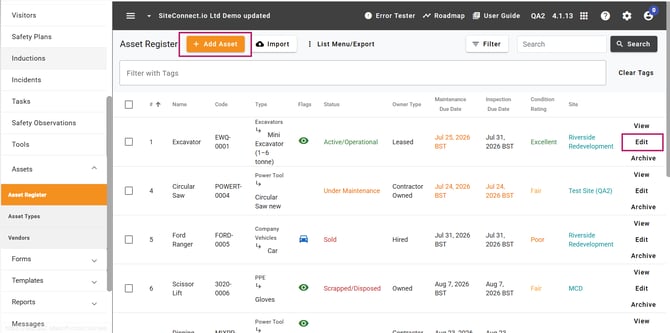
Go to Assets > Asset Register.
Select Add Asset when creating a new record, or select Edit beside an existing asset.
Step 2. Select the site
Select Select Site, then choose the site where the asset is currently used.
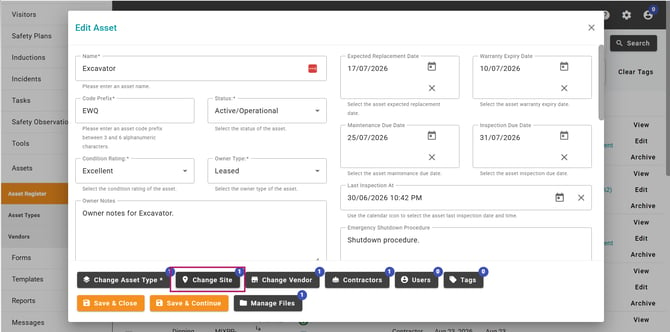
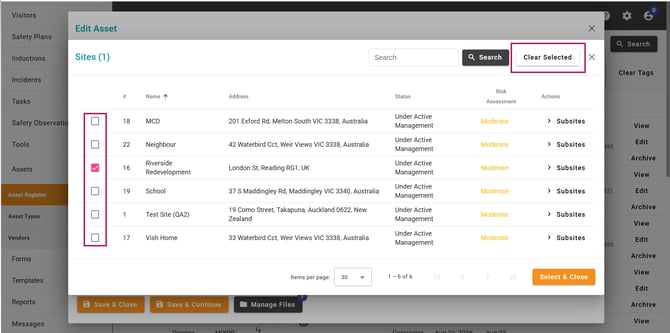
To move the asset, replace its current site with the new one. To remove the site link entirely, deselect the current site or select Clear Selected, then select Select & Close. An asset can be linked to only one site at a time.
Step 3. Save the changes
Review the asset details, then save the record.
What happens when the site changes?
Hazards and risks linked to an asset are removed from the previous site’s Risk Register and added to the new site’s Risk Register when the asset moves. SiteConnect moves the existing linked records rather than creating copies, so their ratings, controls and assessments remain unchanged.
When the asset has no site, its hazards and risks remain linked to the asset but no longer appear in a site Risk Register.
Incidents, safety observations, tasks, RAMS & SWMS and Inspections & Audits remain connected to the asset and retain their original site history.
Result
The asset is linked to its current site and its connected hazards and risks appear in the correct Risk Register.
For the asset to appear to field users, it must also be marked Visible on the Mobile app.
Next recommended step
Connect the asset’s hazards and risks
Add the hazards and risks associated with the equipment so they can follow the asset when it moves between sites.
Next article: How do I link Hazards & Risks to an Asset?