.png?width=161&height=26&name=SiteConnect%20Logos%20(LinkedIn%20Post).png)
Prepare a spreadsheet before adding assets so you can create consistent records from the start.
Use this article to prepare your data. For a step-by-step guide on how to import your asset data into SiteConnect via CSV, see How do I import assets from a CSV file?
At a glance
|
For |
Company administrators and Asset Register owners |
| Platform | Web Portal |
| Applies to | All regions |
| Time to Read | About 2 minutes |
| You’ll learn how to |
• Identify the information required by SiteConnect. |
What information should I prepare?
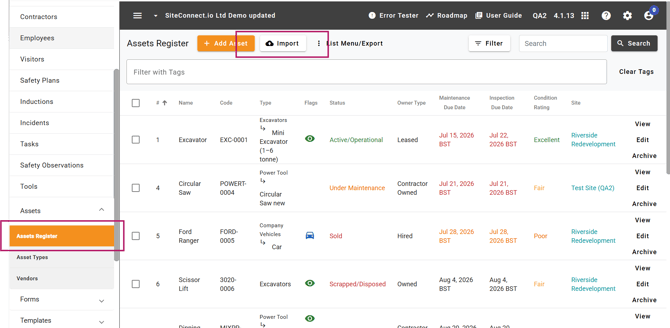
Go to Assets > Asset Register, select Import, then select Download CSV Template. Use the template to organise your asset information in the correct structure before completing the CSV import.
1. Essential information
SiteConnect requires different information depending on how you add assets. A CSV import requires Name and Asset Type. When adding an asset manually, you also need a Code Prefix, Status, Owner Type and Condition Rating.
Record a clear name and Asset Type for every asset. Where your structure uses them, also record the Asset Subtype. Include the Code Prefix when adding records manually; SiteConnect can generate one during import when it is left blank.
2. Recommended for rollout
Collect the asset’s status, condition rating, owner type and maintenance due date where applicable. Decide which site the asset belongs to so it can be linked after creation or import, and whether field users need to see it in the Mobile App.
Also collect any inspection, warranty or replacement dates you want SiteConnect to use for reminder emails.
3. Information you can add later
Add further details where they improve identification, safety management or reporting:
- Identifiers: Serial, part, purchase order and vehicle registration numbers.
- Safety: Noise rating, emissions class and emergency shutdown procedure.
- Lifecycle: Replacement, last inspection and lifecycle-end information.
- Financial: Cost amount, frequency and start or end dates.
- Supporting context: Description, owner notes, physical location and general notes.
Caution
It's a lot quicker to import data than it is to copy and paste information bit by bit manually, so consider importing your data in batches if its not all ready at once.
Review the spreadsheet for duplicate names, inconsistent classifications and missing dates before adding or importing the assets.
Next recommended step
Create your Asset Types and Subtypes. Use the classifications you prepared to build a consistent structure for the Asset Register before adding or importing assets.
Next article: How do I create an Asset Type or Subtype?