.png?width=161&height=26&name=SiteConnect%20Logos%20(LinkedIn%20Post).png)
Import Asset Types from a CSV file so your existing list of types and subtypes is ready in the Asset Register without creating each one manually.
At a glance
|
For |
Company administrators |
| Platform | Web Portal |
| Applies to | All regions |
| Time to Read | About 3 minutes |
| You’ll learn how to |
• Download and fill in the import template. |
Before you begin
Make sure you:
- Have permission to manage Assets.
- Agree on your naming convention — see What are asset types and subtypes?
Step-by-step guide
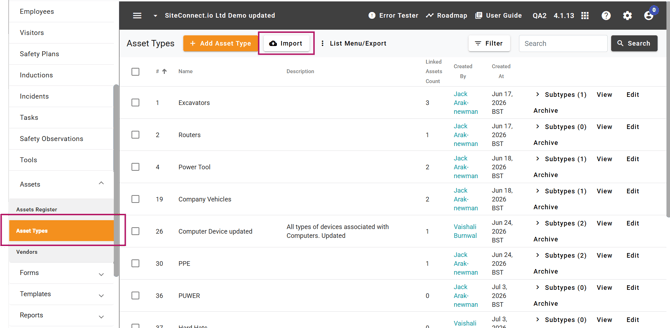
1. Open the import tool
Go to Asset Types in the Web Portal, then select Import.
2. Download the template
Select Download CSV Template for a correctly formatted starter file.
3. Fill in your rows
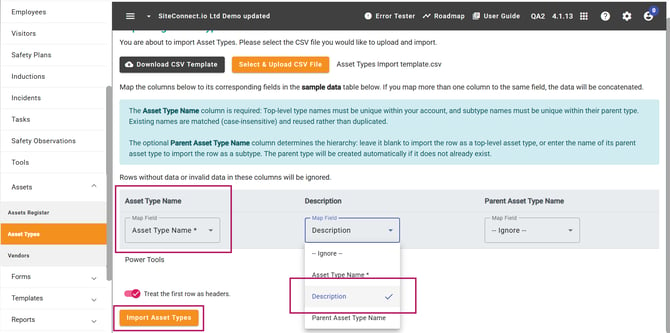
Asset Type Name is required. Leave Parent Asset Type Name blank for a top-level type, or enter the parent's name to create a subtype — it's created automatically if it doesn't exist yet.
4. Upload and map your columns
Select Select & Upload CSV File, map your columns, then select Import Asset Types.
Result
You'll know the import is complete when you receive an email with the results. Imported types and subtypes then appear in the Asset Types list.
Note
Existing names are matched case-insensitively, so re-importing the same file won't create duplicates — a match to an archived type restores it instead.
Next recommended step
Add or import the assets that will use these types.
Next article: How do I add an asset?