.png?width=161&height=26&name=SiteConnect%20Logos%20(LinkedIn%20Post).png)
Create a custom role when someone needs more access than the built-in Users role provides, but does not need full Administrators access. If you’re not sure how custom roles differ from the built-in roles, see: What is the difference between built-in roles and custom roles?
At a glance
|
For |
Company Administrators and anyone holding the RBAC Roles permission |
| Platform | Web Portal - Roles and permissions are not managed in the mobile app. |
| Applies to | All regions |
| Time to Complete | About 2 minutes |
| You'll learn how to |
• Create a custom role and set its permissions. |
Open RBAC Roles, select New Role, name the role, tick its permissions and save. Then add users from the Employees tab.
Before you start
You need Create and Edit on the RBAC Roles permission.
Step-by-step guide
Step 1: Open RBAC Roles
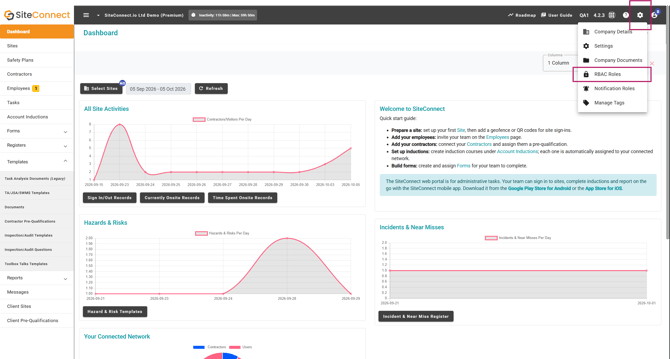
Select the settings (gear) icon in the top bar, then choose RBAC Roles.
Step 2: Create a new role
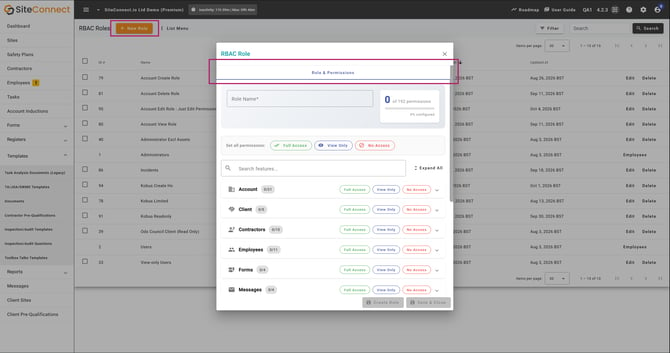
Select New Role. The RBAC Role dialogue opens on the Role & Permissions tab.
Step 3: Name the role
Type a name into Role Name.
Step 4: Set the role's permissions
Tick the permissions the role needs. Use Search features... to narrow the list, or use Full Access, View Only or No Access to update a whole category at once. Selecting Edit or Delete automatically selects View, because someone needs to be able to see a record before they can change or remove it.
Step 5: Save the role
Once you're happy with the role's permissions, select Create Role to save and stay in the dialogue, ready to add people. Save & Close saves and closes it.
Note
Saving a role doesn't put anyone in it. If you only have Create, ask a colleague with Edit access to RBAC Roles to add people, or upgrade your permissions!
Step 6: Add people to the role
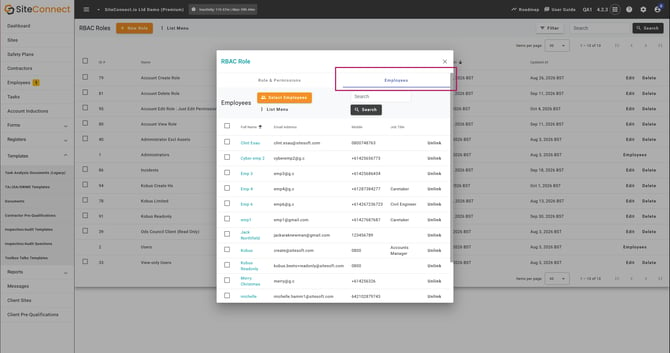
Select the Employees tab, then Select Employees. Tick the people you want to add to the role, confirm your selection, then close the dialogue using the X. You can assign RBAC roles only to employees in your account.
Result
The role change applies automatically the next time the person uses SiteConnect. Signing out of the web portal isn't required. See: How will the new roles and permissions affect my existing users?.
If something goes wrong
If you're sent back to the dashboard with the message “You do not have permission to view RBAC roles.”, you need View on RBAC Roles. Ask an administrator for it.
If there's no Employees tab, the role hasn't been saved yet. If you used Save & Close, reopen the role from the list.
Next recommended step
Next article: What permissions does someone need to work within a site?